Printing
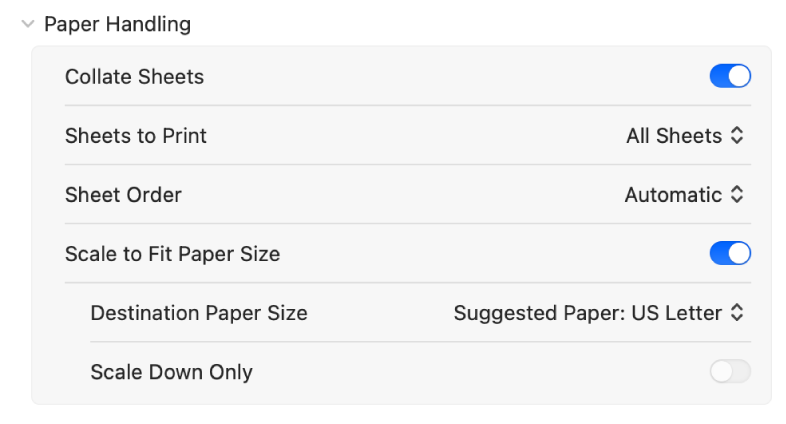
Follow these instructions to print the Scorecards properly using a Mac:
- Check if your printer is connected.
- Make sure “Scale to Fit Paper Size” is selected.
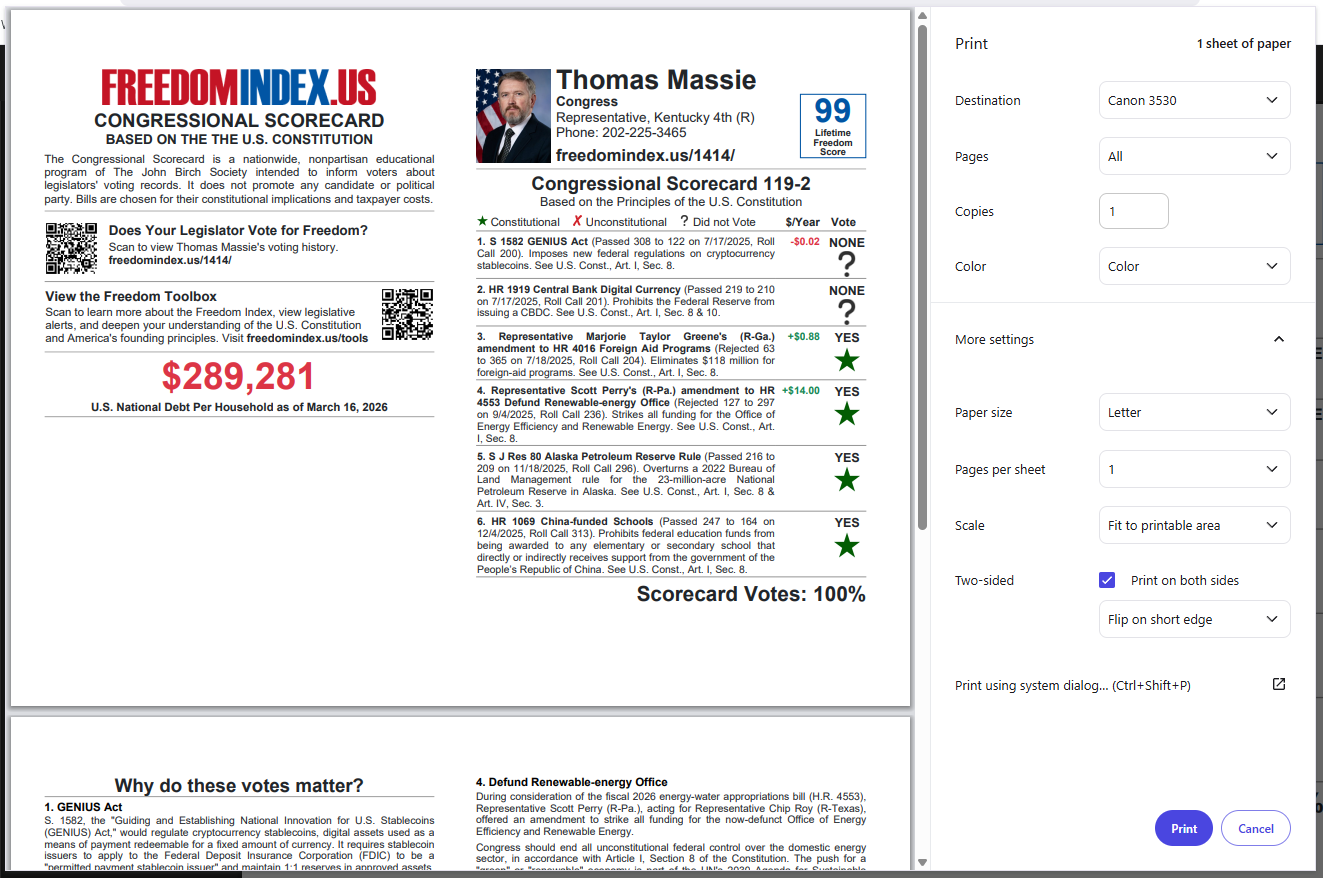
Follow these directions to print the Scorecards properly using Brave:
- Check if your printer is connected (at “Destination”).
- Set “Paper size” to “Letter.”
- Set “Scale” to “Fit to printable area.”
- Set “Two-sided” to “Print on both sides.”
- Select “Flip on short edge.”
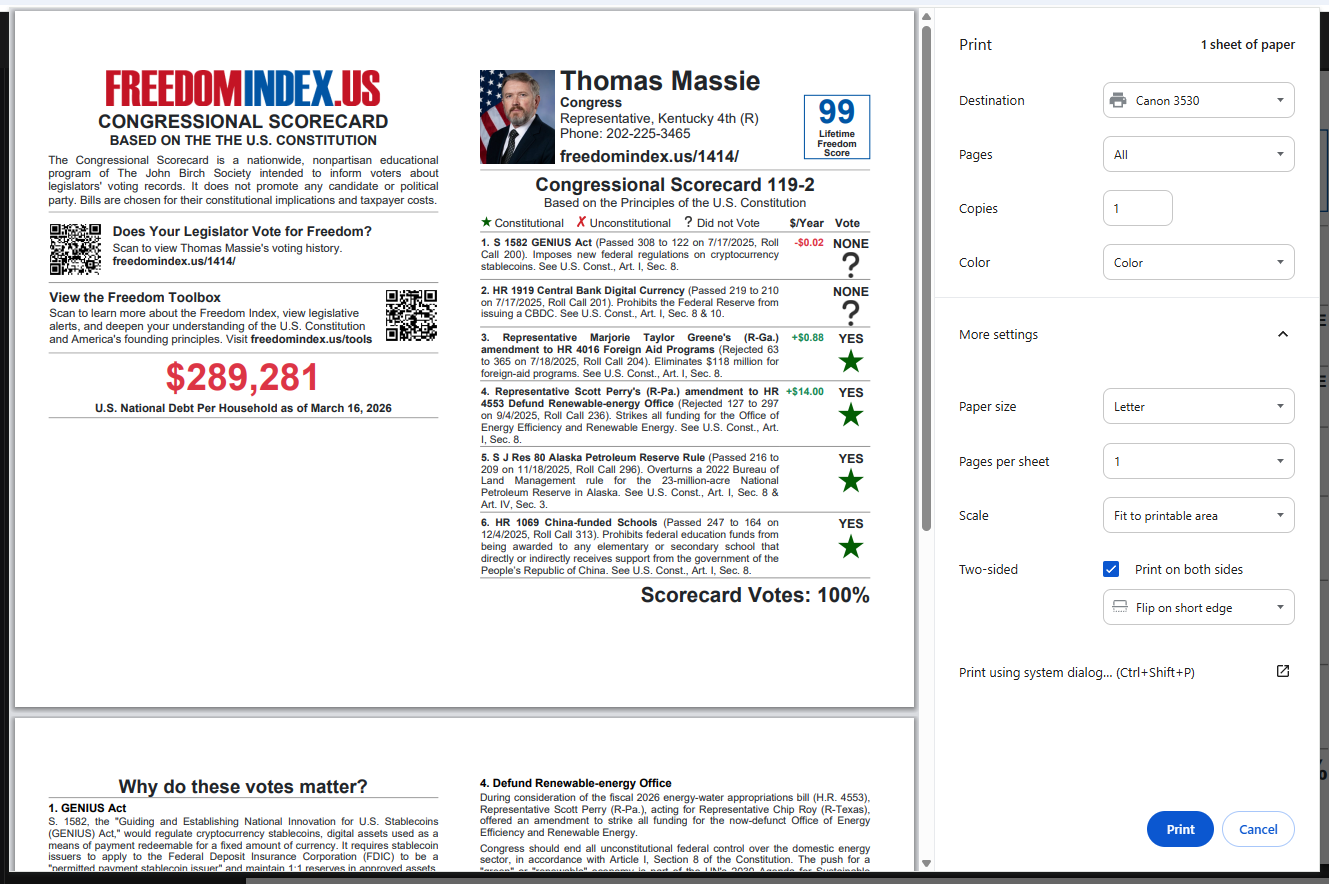
Follow these directions to print the Scorecards properly using Chrome:
- Set “Paper size” to “Letter.”
- Set “Scale” to “Fit to printable area.”
- Set “Two-sided” to “Print on both sides”
- Make sure “Flip on short edge” is selected.
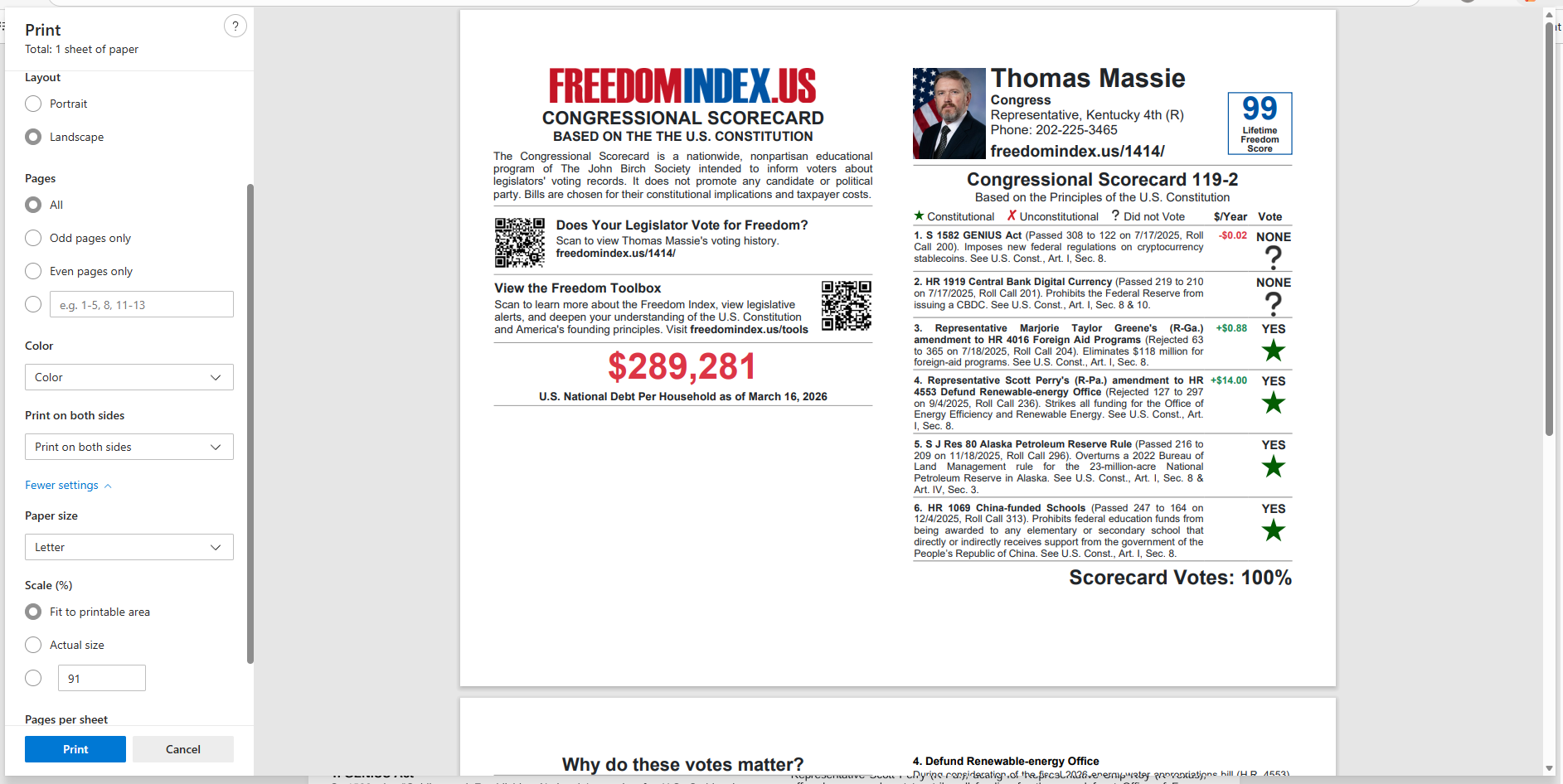
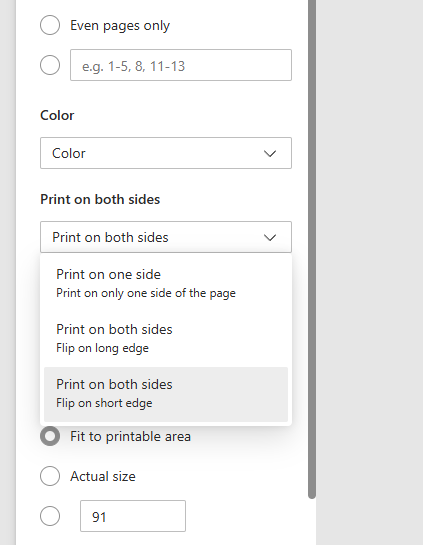
Follow these directions to print the Scorecards properly on Edge:
- Check if your printer is connected (at “Printer”).
- Set to “Print on both sides” with “Flip on the short edge.”
- “Paper size” should be set to letter.”
- “Scale (%)” should be set to “Fit to printable area.”
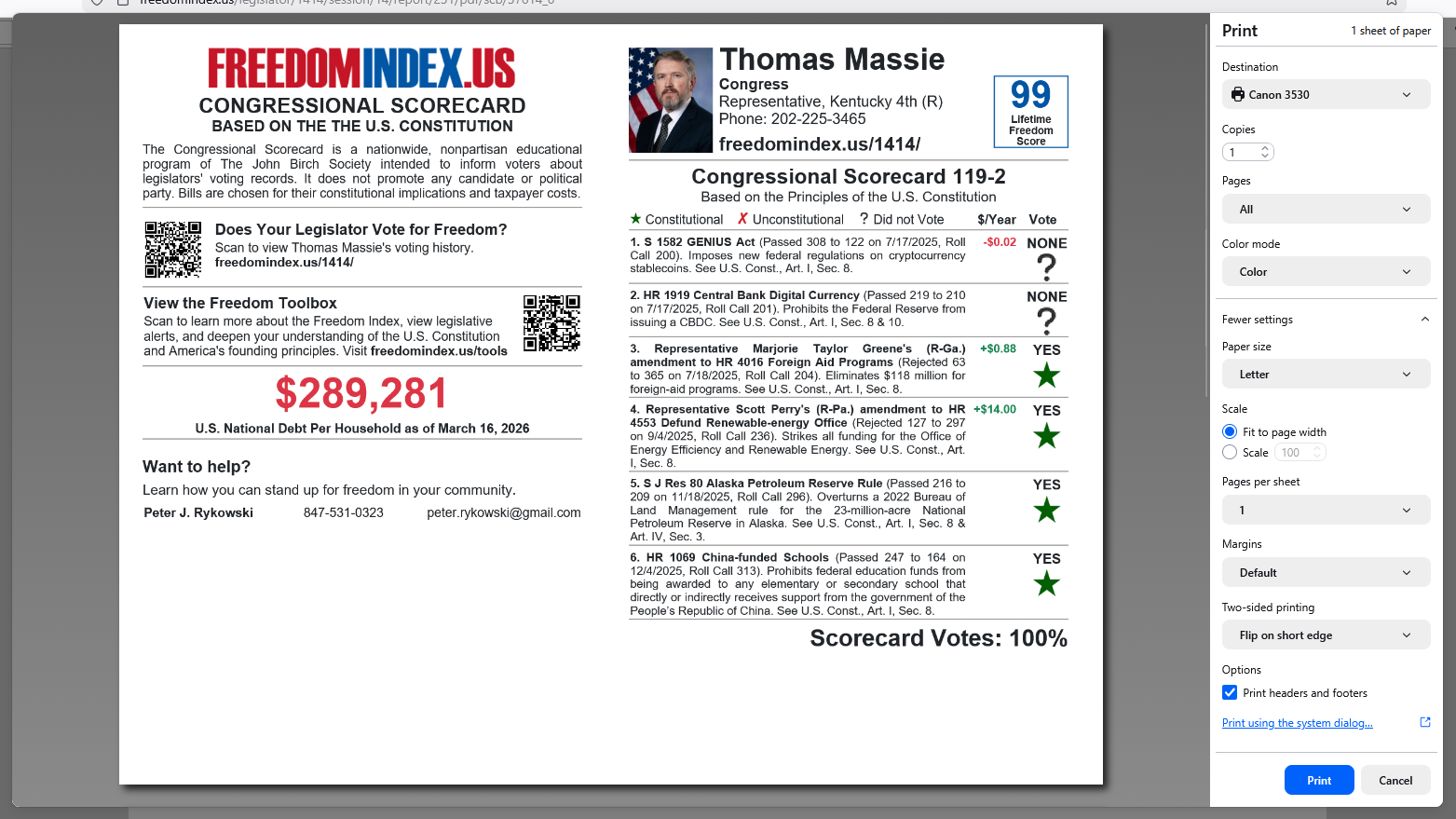
Follow these directions to print the Scorecards properly using Firefox:
- Check if your printer is connected (at “Destination”).
- Set “Paper size” to “Letter.”
- Set “Scale” to “Fit to page width.”
- Set “Margins” to either “Default” or “None.”
- Set “Two-sided printing” to “Flip on short edge.”